


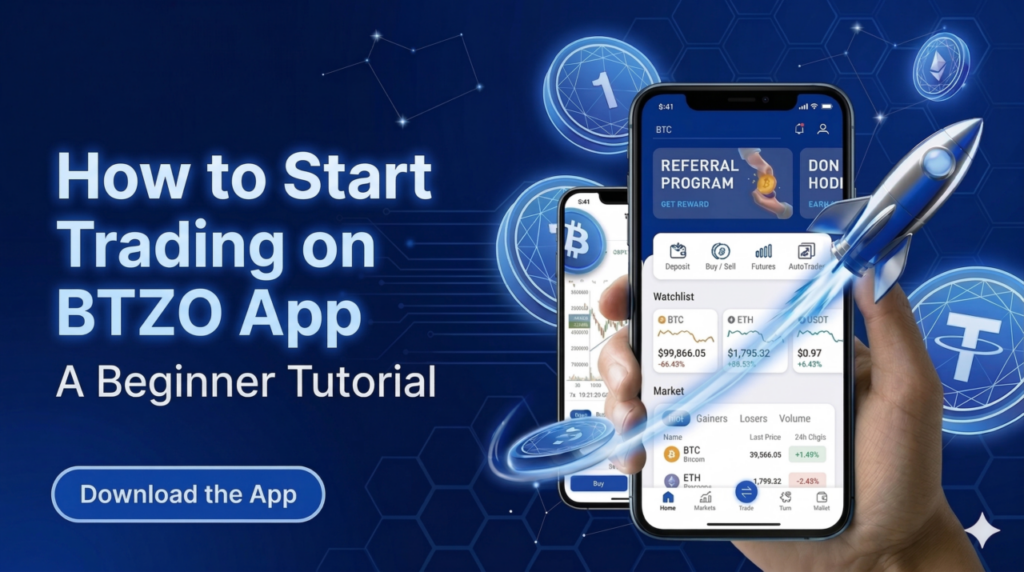
Crypto trading has moved to phones. Most people today manage their investments from wherever they happen to be, without sitting in front of a computer all day. The BTZO app puts this power in anyone’s pocket. It allows users to purchase, sell, convert, and exchange digital assets right from their smartphones. It can be difficult for someone who is just getting started to know where to begin.This guide breaks everything down into simple steps. The question BTZO APP – Overview? has a straightforward answer: it is a mobile-first crypto platform offering spot trading, futures trading, a convert feature, automated tools, and earn products all in one place . This tutorial walks through each stage so readers can go from downloading the app to placing their first trade with confidence.
BTZO App – Overview
The btzo trading app serves both beginners and experienced traders through a clean, easy-to-use interface . Users get access to over 150 cryptocurrencies across multiple trading options .
Some of the features available on the app are:
- Spot Trading: You can buy and sell your crypto at the prevailing price.
- Futures Trading: You can use it to profit from both rising and falling markets.
- Convert: You can instantly swap one crypto for another without the need for charts.
- Autotrader: It is a bot that helps you trade based on certain set rules.
- Earn: You can stake certain coins such as Ethereum or Solana and earn rewards.
All these features are integrated into the app, and it has a simple and clean interface. User safety is also ensured through certain security features. The answer to the question of whether the BTZO app suits their needs typically relies on whether they want a single platform that manages both simple and complex trading options.
Step 1: Download and Install the BTZO App
Getting the app onto a phone takes just a few minutes. Since the app is available as an APK file, users need to download it directly from the official source .
-
Visit the official website:
Open a mobile browser and go to the official BTZO website. Look for the download section clearly labeled on the homepage .
-
Download the APK file:
Tap the download button for Android devices. The file saves to the Downloads folder automatically.
-
Adjust phone settings:
Before opening the file, go into phone settings. Find the security or privacy menu and enable “Install from Unknown Sources.” This setting can be turned off again after installation finishes .
Install the app by opening the download folder and selecting the BTZO file. You’ll be requested to install it.
This process is completed in less than five minutes.
Also Read: How to Download the BTZO App on your Android Device
Step 2: Open and secure your trading account.
After installing the program, the following step is to establish an account. The registration process asks for basic information and moves quickly .
-
Open the app and tap Sign Up:
Look for the registration button on the welcome screen.
-
Enter email and password:
Provide a valid email address. Choose a strong password with a mix of uppercase letters, lowercase letters, numbers, and symbols .
-
Verify email:
Check the inbox for a verification code from BTZO. Enter that code in the app to confirm the email address .
-
Log in:
Return to the app and log in with the new information.
-
Enable two-factor authentication:
Navigate to Account Settings and look for the Security section. Enable 2FA by scanning the QR code with the authenticator app and inputting the displayed code. This step provides crucial security against unwanted access.
After logging in, the dashboard appears. This screen shows portfolio value, recent activity, and quick links to trading features .
Step 3: Deposit Crypto into Your BTZO Wallet
Trading requires funds in the wallet. Depositing crypto into the btzo trading app follows a straightforward process.
-
Look for the “Wallet”:
The icon is at the bottom of the screen to locate the Wallet area. To access the wallet dashboard, tap it.
-
Select Deposit:
Decide which coin to deposit. USDT, BTC, ETH, and other options are common.
-
Choose the appropriate network:
If a coin, such as USDT, operates on several networks, choose the network that corresponds to the external wallet that is transferring the money. Mismatching networks can cause permanent loss .
-
Copy the deposit address:
The app generates a unique address and QR code. Copy the address string to the clipboard.
-
Send from external wallet:
Switch to the wallet or exchange holding the funds. Paste the copied BTZO address into the withdrawal field and confirm the transaction.
-
Wait for confirmations:
The blockchain needs time to process the transaction. Funds appear in the BTZO wallet once enough confirmations happen.
Also Read: How to Deposit Crypto on the BTZO App: A Complete Beginner’s Guide
Step 4: Understand the BTZO Trading Interface
Before placing a trade, taking a moment to understand the trading screen helps avoid confusion later. The BTZO app organizes information clearly .
Step 5: Select a Cryptocurrency Trading Pair
Trading pairs represent the two assets being exchanged. In crypto, most pairs quote against a base asset like USDT or BTC.
For example, in the BTC/USDT pair:
- BTC is the base asset being bought or sold
- USDT is the quote asset used to price the trade
The market list in the btzo app shows all available pairs with search functionality to find specific ones quickly.
Step 6: Buy or Sell Crypto on the BTZO App
With funds in the wallet and a pair selected, placing a trade comes next. The app offers two main actions.
The order panel clearly labels which action does what. Double-checking amounts before confirming prevents simple mistakes.
Understanding Different Order Types
The btzo app supports multiple order types to suit different trading styles and goals.
Market Order
A market order executes immediately at the current best available price. This works well when speed matters more than getting a specific price. The trade fills instantly using orders from the order book.
Limit Order
A limit order sets a specific price where the trade should happen. The order sits on the book and only executes if the market reaches that price. This gives traders control over entry and exit levels .
Stop-Loss Order
A stop-loss order helps limit potential losses. When the market hits a specified trigger price, the stop-loss becomes a market order and closes the position. This automates risk management without requiring constant screen watching.
How to Monitor Your Active Trades
After placing trades, keeping track of them matters. The BTZO app provides clear tools for monitoring.
Open positions appear in the “Positions” or “Open Orders” section. This shows:
- Entry price
- Current price
- Profit or loss
- Order status
Completed trades live in the trade history, showing execution price, fees, and time. The portfolio tracker on the main dashboard gives a quick overview of total balance and coin holdings . Checking these regularly helps traders stay aware of how their account performs.
Beginner Tips for Trading on the BTZO App
New traders often benefit from following simple guidelines that protect capital while learning.
-
Start with small trades:
Use amounts small enough that mistakes do not hurt. Learning happens faster when fear of losing big stays out of the picture .
-
Use limit orders:
Limit orders provide price control. Market orders can sometimes slip during fast-moving conditions.
-
Set stop-loss orders:
Always know the exit point before entering. Stop-losses automate that decision .
-
Avoid high leverage initially:
Leverage magnifies both gains and losses. Stick to low or no leverage until experience builds .
-
Study market trends before trading:
Look at charts and price action for a while before committing funds. Understanding context improves decisions .
Start Your Crypto Trading Journey with BTZO App
The BTZO app makes crypto trading accessible for anyone with a smartphone and a few minutes to set things up. The process stays simple from start to finish. Download the app from the official website, create an account with email and password, enable security features, deposit funds into the wallet, choose a trading pair, and place that first trade.
Beyond basic trading, the app offers room to grow. Spot trading handles simple buys and sells. Futures trading opens doors to leverage and shorting . AutoTrader automates strategies for those who want hands-off approaches . Earn products let idle coins generate rewards through staking . All these features live inside the same clean interface.
The only step left is the first one. Download the BTZO app today from the official website and start trading with confidence.